Initial Screen Overview: ISOBUS Operation View on a Hexagon Display
The Virtual Terminal is a screen that lets operators interact with their implements by displaying information provided by the equipment controllers. This means you can use one Virtual Terminal with any ISOBUS-compliant equipment.
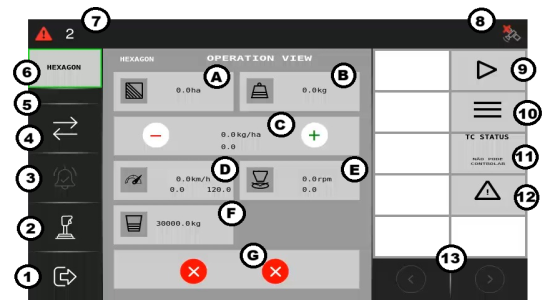
We will start by exploring the functionalities present on the initial screen of the Virtual Terminal.
-
Operation screen: By clicking this button, you exit the ISOBUS operation view and return to the display's operation screen.
-
Auxiliary control: External auxiliary controller settings that allow you to control the implement functions independent of the Virtual Terminal interface, provided that the configured functions and inputs maintain connection with the Virtual Terminal.
-
Alarm acknowledgment: Shows all implement alarms and appears when an alarm is activated. Click to clear alarms.
-
Connected implements list: Shows all connected implements.
-
Download progress bar: When downloading new implements, this bar shows the download progress.
-
Active implement: Shows the active implements.
-
Alarm bar: Shows alarms pertinent to the display.
Important: Widgets A, B, C, D, E, F, and G will vary depending on the ECU configuration. Click here to learn more about these widget -
Connectivity information: Displays information about GNSS, Mobile, Cloud, Wi-Fi, and Local connections.
-
Master key: Serves as the main control for initiating and/or pausing the application.
-
Configurations menu: On this menu, you can access diagnostic screens, settings, and system settings.
-
TC Status: Defines how the implement interacts with the task controller. It has five states determined by specific software sensors.
-
Alarm view: Click on the alert icon to access all active alarms and obtain more detailed information on how to troubleshoot the problem.
-
Pagination between function keys: Helps manage multiple settings and operations efficiently by enabling quick switching between various function pages or menus.
Now that you've reviewed the initial screen, you’ll go through the alarm types before we explore each function in detail.